Have a CVZilla promo code? You can apply it directly during checkout when upgrading your account to CVZilla Pro.
The discount code field is inside the checkout rather than on the main CVZilla screen. Here’s how to find it.
1. Open CVZilla and choose Upgrade to Pro
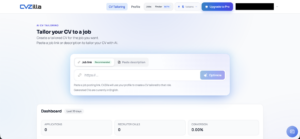
Sign in to your CVZilla account and click Upgrade to Pro in the top navigation.
You can also review the available free and Pro options on the CVZilla homepage before upgrading.
2. Select the CVZilla Pro plan
The CVZilla Pro window will open with the current subscription price and included features.
Click Upgrade to Pro to continue to checkout.
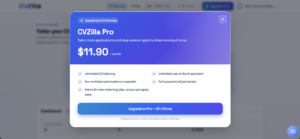
3. Continue to checkout
CVZilla uses Lemon Squeezy to process the payment.
Choose your payment method and enter the required email and billing information.
The promo code field is further down the checkout page, so scroll below the billing address section.
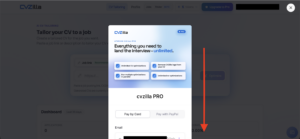
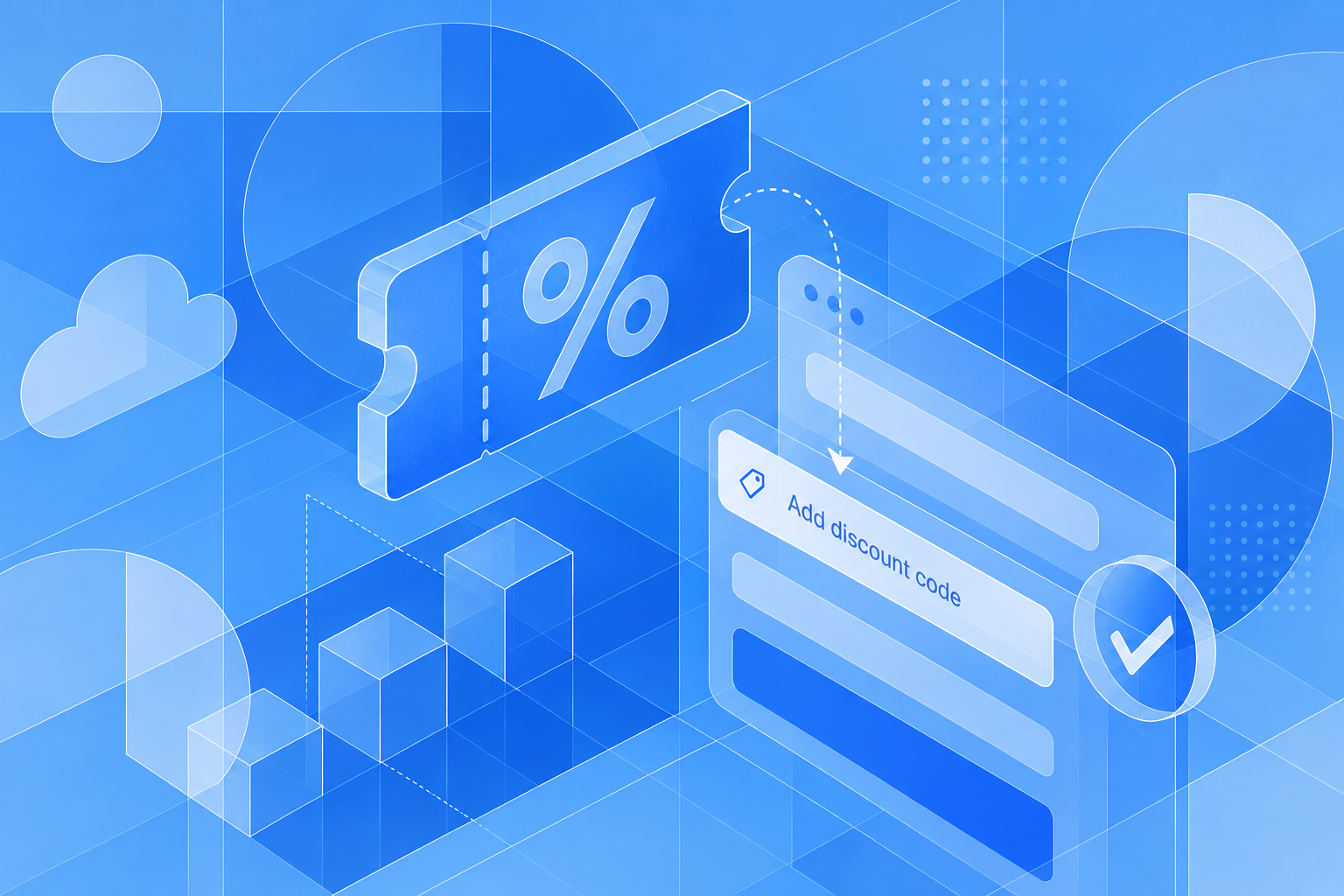
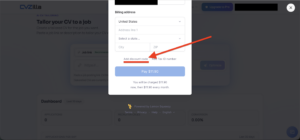
4. Click “Add discount code”
Under the billing address fields, find Add discount code.
Click it to open the promo code field.
Enter your CVZilla promo code and apply it before completing the payment.
5. Check the discount before paying
After applying the code, check the order total.
The discounted price should be reflected in the checkout before you click Pay. If the total has not changed, make sure the code was entered correctly and successfully applied.
That’s it — once the payment is completed, your CVZilla Pro subscription will be activated.
What can you do after upgrading?
Once you have Pro access, you can continue your job search inside CVZilla rather than rebuilding your CV for every application.
You can browse relevant openings through CVZilla Jobs, or use Finder to quickly review jobs, save the ones you like, and move them into CV tailoring.
If you are new to job-specific CV optimization, read our guide on how to tailor your resume to a job description without keyword stuffing.